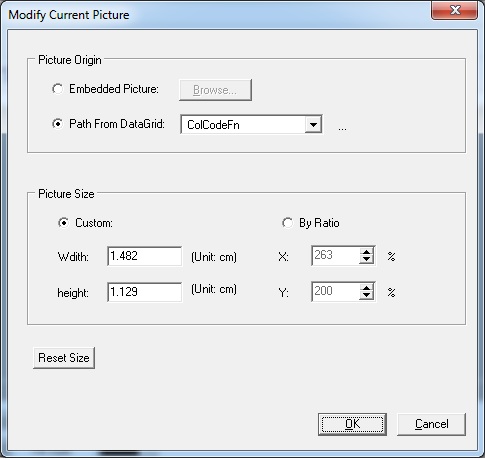
Print labels according to the cutting or the break order of the patterns made. Here the number of labels made will be equal to the number of parts nested in the job and also generate labels for Offcust also. If you not require label for offcut, you can deselect the "Inc Offcut La" on below screen.
Note: If you want to Offcut label, just allow offcut on setting page
Consider the following example: Suppose there are 4 parts of different sizes and qty required to be cut.
Part 1 - qty required 65
Part 2 - qty required 50
Part 3 - qty required 75
Part 4 - qty required 90
Thus when you print the label 280 labels will be made as follows
65 labels for part 1
50 labels for part 2
75 labels for part 3 and
90 labels for part 4 will be printed and also print the label for offcut.
These labels will are made in the order the parts are broke.
New feature: Generate labels with QR code:
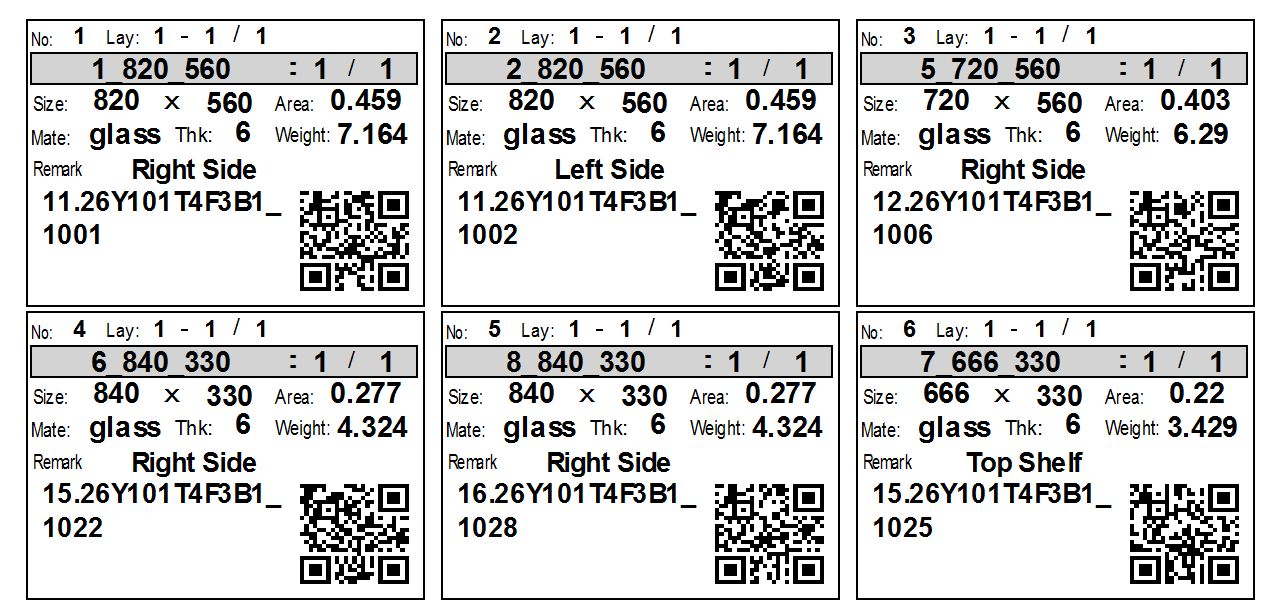
The QR Code feature is available when a Part Custom Column is created with the name "QRCODE".
For Eg. see the below image:
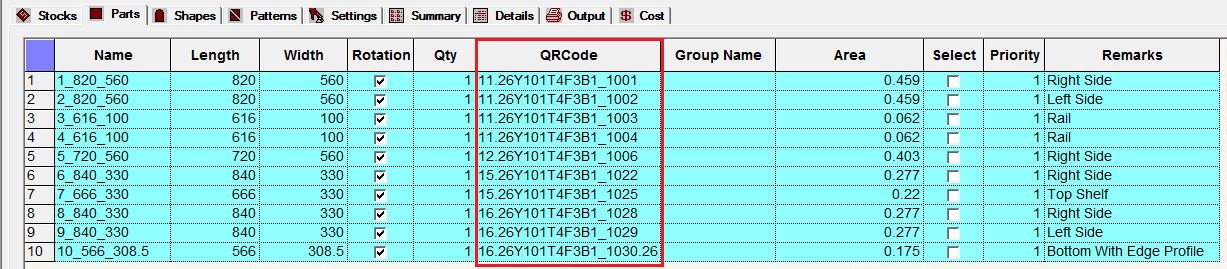
You can enter any required information in the QRCODE column, such as:
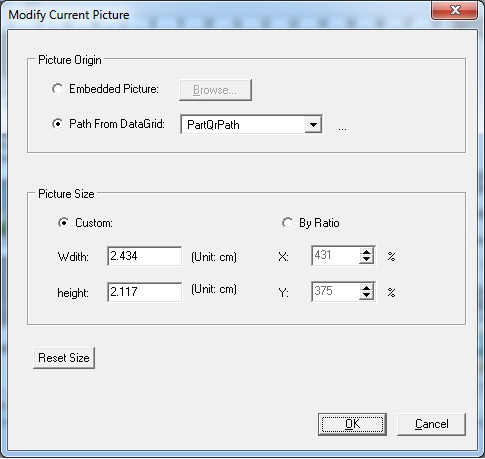
During label generation, PLUS 2D will automatically generate a QR Code using the value entered in the QRCODE column.
New feature: You can generate labels with color code for customer:
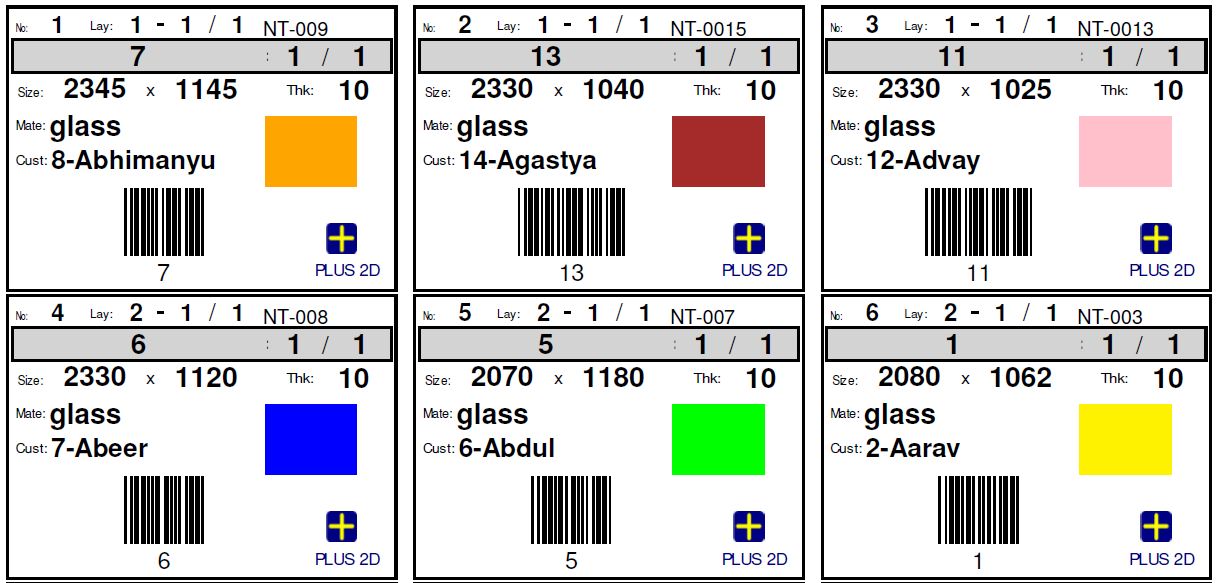
Color code feature work will when you add part custom columns name as "COLCODE".
For Eg. see the below image:
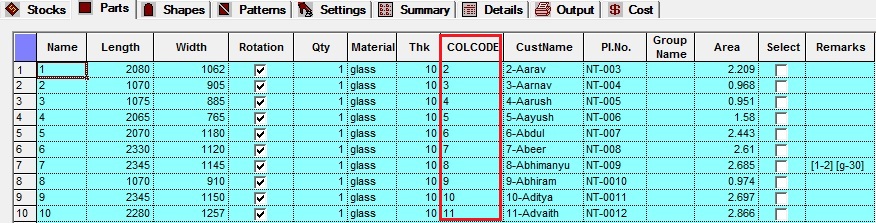
You can enter Custname, number any thing in "COLCODE" Column.